How to Connect IOMeter Energy Meters with the Scharr App
Availability
This integration is available in supported app versions.
Preconditions
- Your IOMeter device is installed and visible in the IOMeter app.
- You have an active IOMeter account.
- Official website: iometer.de
Activate Scharr in the IOMeter app
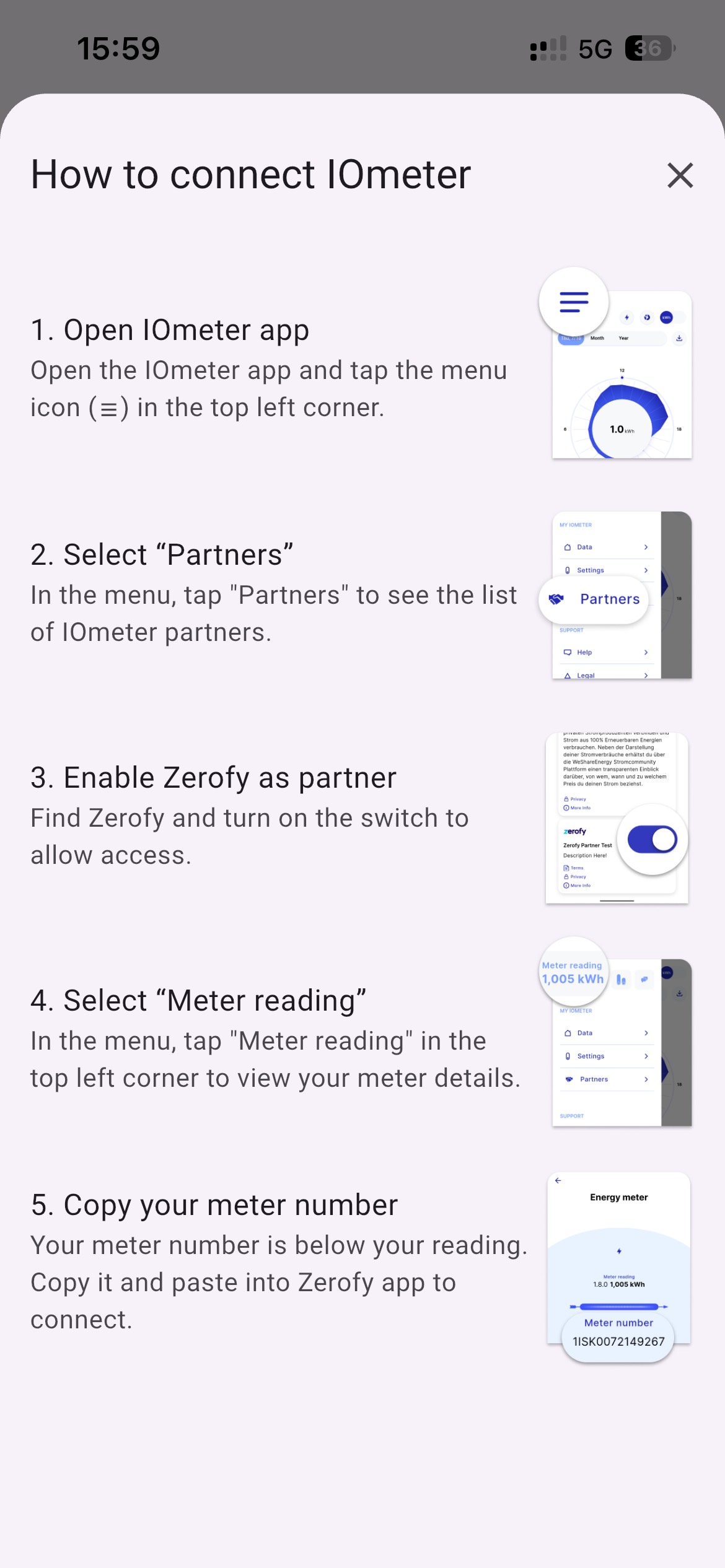
- Open the IOMeter app and tap the menu icon (top left).
- Tap
Partners. - Find
Scharrand enable the partner switch. - Tap
Meter reading. - Copy your meter number shown below the meter value.
Connect your meter in Scharr
Open meter setup in Scharr and paste your copied IOMeter meter number.
Troubleshooting
If IOMeter cannot connect to Scharr, please check the following points first. They are almost always the cause:
- Is
Scharrenabled as a partner in the IOMeter app? Check this as shown in step 3 in the image above. - Copy the meter number directly from the IOMeter app, as described in step 5, and paste it into Scharr. Please do not type the number manually from the meter or from the app. This often causes
0andOto be mixed up, or the serial number to be entered instead of the meter number.
Features and Things to Know
With IOMeter integration, you can:
- Monitor real-time energy consumption and grid import/export.
- View historical power data with 5-minute resolution.
- Track energy usage over time.
- Configure as a net meter or consumption meter.
Supported Configurations
IOMeter devices can be configured as:
| Configuration | Description |
|---|---|
| Net Meter | Measures grid import and export |
| Consumption Meter | Measures total household consumption |
Data synchronization depends on IOMeter’s cloud update frequency.
Meter type
Main meter: Grid meter. Can be configured as bi-directional or consumption.Production: Measures solar production. Configure as sub meter with typeproduction.Sub meter: Measures any type of device as a sub meter and appears in device consumption.
For full setup details with screenshots, see System Setup: Meter Configuration.